
- Create a new mount point directory on your machine for the remote directory:
$ sudo mkdir /mnt/debug - Remote mount the directory of the remote application on your machine (to avoid having to copy all of the remote files to your machine) - note this might not be allowed by OSWE exam:
$ sudo sshfs -o allow_other,default_permissions user@machine:/path/to/program /mnt/debug -
Decompile the application Jar (or the most interesting one out of several) with JD-GUI.
- Save the decompiled JD-GUI source file and unzip it. The decompiled Java code won’t be in the correct format for Visual Studio and breakpoints won’t be hit if you try and debug right now. You’ll have to format the output of the files and folders in the unzipped file that you get from JD-GUI, but once you have this format, debugging should work with visual studio code.
You can also use the following command to extract the jar files. This doesn’t decompile them, but you’ll be able to see the general file structure and get a sense of the size of the application:
jar xvf file.jar
- The file and directory layout that has worked for me has been as follows:
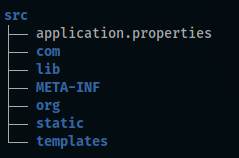
- src: Base directory where everything is stored.
- application.properties: Contain the properties to run the application in a different environment.
- com: Directory that contains the actual application java files
- lib: Directory that contains all the third party jar files used in the application.
- META-INF: Holds the
MANIFEST.MFfile that is used to define extension and package related data. - org: Holds the Spring Framework model for Java enterprise applications.
- static: Holds the application styling files such as css and webfont files.
- templates: Holds the application template pages.
- Open the mounted folder with Visual Studio code:
$ cd /mnt/debug/src
$ code .
-
You’ll have to rename some of the package lines at the top of the .java files in the com directory to match the new directory layout.
-
Create a Java remote debugging launch.json file:
Example:
Code: { // Use IntelliSense to learn about possible attributes. // Hover to view descriptions of existing attributes. // For more information, visit: https://go.microsoft.com/fwlink/?linkid=830387 “version”: “0.2.0”, “configurations”: [ { “type”: “java”, “name”: “Debug (Attach) - Remote”, “request”: “attach”, “hostName”: “remoteIP”, “port”: 8000 } ] }
-
Start the debugger and set breakpoints to start debugging.
-
When finished debugging, unmount the directory mount created in step 1:
$ sudo umount /mnt/debug